







Common Shelf LED Display Problems: How to Locate and Solve Them
A shelf LED display can make products easier to notice and promotional content easier to update. When the display goes black, flickers, shows uneven colors or loses its connection, the cause is often found in one of four areas: power, signal, configuration or installation.
A structured troubleshooting process helps you identify the problem before replacing parts. This guide explains the most common shelf LED display problems, what to check first and when to contact an LED display supplier.

Start With a Safe Troubleshooting Checklist
Before opening a display or removing a module, collect a few basic details:
- The display model and module specification
- Whether the display is installed indoors or outdoors
- Whether the problem affects one module, one cabinet or the whole screen
- The controller and signal source being used
- Whether the display was recently moved, cleaned or rewired
- When the problem first appeared
Turn off the power before checking connectors, power supplies or internal modules. Do not continue operating a display that shows signs of overheating, damaged wiring or burning components.
It also helps to take a photograph or short video of the problem. This gives the installer or supplier a clearer starting point if remote technical support is needed.
Problem 1: The Shelf LED Display Is Completely Black
A black screen may be caused by a power issue, a signal issue or a controller problem. Start by determining whether the display has any power at all.
Likely causes
- The main power connection is off or loose
- A power cable or power supply has failed
- The controller is not receiving an input signal
- The receiving card is inactive
- The wrong HDMI or network input has been selected
- A signal cable has become disconnected
How to locate the fault
Check whether the display’s indicator lights, fans or controller indicators are active. If the entire screen is inactive, inspect the main power path first. If only one section is black, compare that section with a working module or cabinet.
Next, check the selected input source and the connection between the media player, computer or controller and the LED display. A screen can appear faulty when the content source is simply disconnected or set to the wrong output.
Practical solutions
Reconnect loose power and signal cables, confirm the controller input and test the display with a known working signal source. A damaged cable or power supply may need to be replaced.
If the display remains black after the basic checks, contact the supplier. The problem may involve the controller, receiving card or internal power distribution.
Problem 2: Flickering, Shaking or Unstable Images
Flickering is one of the most noticeable shelf LED display problems. It may affect the whole screen or only a small area.
Likely causes
- A loose or damaged signal cable
- Unstable voltage
- Poor grounding
- Incorrect controller or receiving-card settings
- Driver IC or receiving-card faults
- Electromagnetic interference
How to locate the fault
First identify the size of the affected area. If the whole display flickers, check the power supply, controller and main signal path. If only one cabinet or module flickers, inspect the local connectors and receiving-card channel.
Test another signal cable if one is available. You can also compare the display with a different content source. If the flicker changes when the source changes, the issue may be related to the input device or configuration.
Practical solutions
Secure or replace loose signal cables and check the power supply while the display is operating. Review the controller configuration and confirm that the settings match the display specification.
If the issue continues, the supplier may need to check the driver IC, receiving card, firmware or system compatibility. UHLED also publishes technical information about LED display driver ICs and display performance through its LED display blogs and whitepapers.
Problem 3: Some Modules Are Dark or Show Dead Pixels
A dark area may be limited to one pixel, one line, one module or a complete cabinet. Locating the size of the problem helps narrow down the cause.
Likely causes
- A loose module connection
- A damaged LED module
- Installation impact
- A failed receiving-card channel
- Pixel or driver component failure
How to locate the fault
Check whether the dark area follows the physical shape of one module. Inspect the module connectors and look for visible damage. If the system design allows it, a technician can test the suspect module in a known working position.
A single dark pixel suggests a different problem from an entire cabinet that is not displaying. Record the exact location and size of the affected area before replacing anything.
Practical solutions
Reconnect the module, replace a damaged cable or install a matching replacement module. The replacement must use compatible specifications, including module dimensions, pixel pitch and connection design.
UHLED’s product FAQ recommends beginning initial troubleshooting with the power and signal connections. If the same fault returns after a module replacement, contact the supplier for a deeper inspection.
Problem 4: Brightness or Color Is Uneven
Uneven brightness can make a shelf display look inconsistent, especially when several modules are viewed together. Color differences may become more visible after a module has been replaced.
Likely causes
- Different brightness settings between modules
- Incorrect calibration
- Aging LEDs
- Inconsistent receiving-card settings
- Changes in surrounding light
- Incorrect content or display settings
Practical solutions
Check the brightness and color settings first. Recalibrate the display if the system supports calibration. Confirm that all replacement modules use the correct specification for the original display.
Brightness can also be adjusted for the installation environment. UHLED’s FAQ states that its displays can be configured with adjustable brightness and, where applicable, a light sensor probe for automatic adjustment.
When comparing two displays, check them under similar lighting conditions. A display that looks uneven in a brightly lit store may appear consistent in a darker service area.
Problem 5: The Display Overheats or Turns Off Automatically
An LED display that becomes excessively hot or shuts down may be protecting itself from thermal stress. Continuing to operate it without finding the cause can shorten component life.
Likely causes
- Blocked ventilation
- Inadequate heat dissipation
- High brightness for long periods
- A high-temperature installation environment
- Aging fans or power components
- Insufficient space around the enclosure
Practical solutions
Keep ventilation openings clear and check that fans are working. Make sure the display is not installed beside a direct heat source or inside an enclosed space without sufficient airflow.
Lower the brightness when full output is unnecessary. Inspect the installation structure and heat dissipation components if the problem continues.
Repeated thermal shutdowns require supplier or technician support. The cause may involve the power system, internal temperature monitoring or the installation environment.
Problem 6: Wi-Fi, HDMI or Controller Connection Failure
A shelf LED display may be operating normally even when it is not receiving content. Connection problems can occur between the content source, controller, network and display modules.
Likely causes
- The wrong input source is selected
- An HDMI cable has failed
- Wi-Fi communication is unstable
- The controller is incorrectly configured
- Firmware or software versions are incompatible
- A network port is overloaded
How to locate the fault
Confirm the selected input source and test another HDMI cable or signal source. Check the controller and receiving-card indicators. If wireless communication is unstable, test a wired Ethernet connection where the system supports it.
Also verify that the control software is connected to the correct device and that the content is being sent to the intended screen.
Practical solutions
Reconnect or replace the relevant cable, restart the controller and display, and check for compatible software or firmware updates. UHLED’s FAQ states that its LED display systems can support Wi-Fi and HDMI, with common controllers such as NovaStar and Grayscale HD supported according to the specific configuration.
For a larger installation, ask the supplier to review the controller structure and network layout.
Problem 7: Installation and Wiring Problems
Some display faults begin during installation. Incorrect module orientation, unsupported mounting or stressed connectors can create problems that appear later as flicker, dark modules or intermittent operation.
Common installation issues
- Modules installed in the wrong orientation
- Poor cabinet alignment
- Unsupported mounting brackets
- Cable routing that pulls on connectors
- Insufficient ventilation
- Incompatible modules or power supplies
The wiring diagram and installation structure should be checked before commissioning the display. Every module should be tested before the installation is handed over.
Hard-connection design
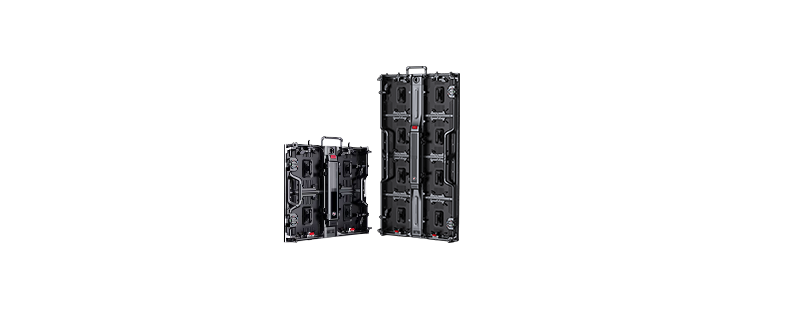
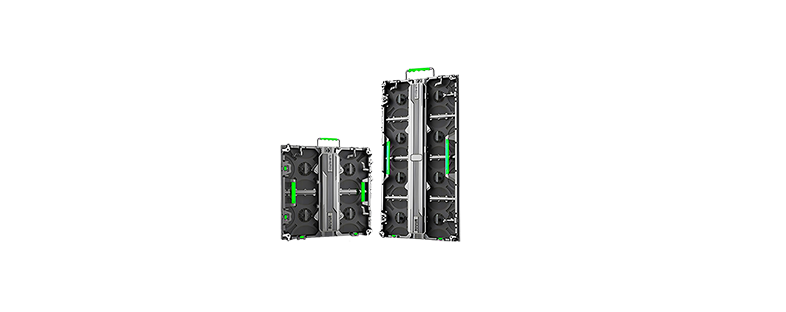
Some shelf LED display systems use an integrated hard-connection design. The connection points are built into the module or cabinet, which can reduce the amount of loose external cabling and make front or rear installation more orderly.
This design can simplify installation, but connectors still need to be checked during maintenance. It does not remove the need for correct alignment, power testing and inspection.
UHLED can provide wiring diagrams and installation structure diagrams for applicable projects. You can review its LED-displayproducten when comparing module and installation options.

When Should You Contact a Shelf LED Display Supplier?
Contact the supplier when:
- The entire display remains black after power and signal checks
- A replacement module fails repeatedly
- The display overheats or shuts down
- Flickering continues after cable and configuration checks
- The controller or receiving card may be damaged
- A large section of the installation is affected
- You need matching spare parts or wiring diagrams
- The display is still under warranty
UHLED’s product information includes a five-year warranty, free remote technical support, accessories supply, software and firmware upgrade support, and installation documentation. Overseas projects can also be supported by project engineers.
You can contact UHLED LED display service when the issue requires model-specific diagnosis or replacement guidance.
How UHLED Helps Prevent Shelf LED Display Problems
UHLED is a technology company that integrates LED display research and development, manufacturing and sales. Established in 2015, the company’s product range includes shelf screens, indoor and outdoor HD LED displays, rental screens, LED posters, transparent displays and irregular displays.
UHLED has developed several generations of shelf LED displays with different module sizes. That history matters during troubleshooting because a replacement module, connector or control setting must match the actual display model.
The company also provides installation documentation, remote technical support, spare accessories and software or firmware support. Depending on the product and market, certification documentation may include CE, RoHS, FCC, UL, CCC, KC or ETL.
For project references, visit the UHLED LED display case studies or review its solutions for different markets.
Veelgestelde vragen
Why is my shelf LED display flickering?
Loose signal cables, unstable power, grounding problems, controller settings and driver-related faults can all cause flicker. Check whether the problem affects the whole display or only one section, then inspect the corresponding power and signal path.
What should I check when my LED display has no signal?
Check the selected input source, HDMI or network cable, controller status, receiving-card indicators, power connections and content-control software settings. Testing another signal source can help separate a display problem from a source problem.
Can a single dark LED module be replaced?
In many modular LED systems, a damaged module can be replaced. The replacement must match the display’s module specification, pixel pitch, dimensions and connection design.
How can I prevent an LED shelf display from overheating?
Keep ventilation clear, inspect fans and heat dissipation components, avoid unnecessary full brightness and ensure that the installation space has sufficient airflow. Repeated shutdowns should be checked by a qualified technician or supplier.
Does UHLED provide technical support for shelf LED displays?
UHLED’s product FAQ states that it provides free remote technical support, accessories supply, software or firmware upgrade support and installation documentation. Customers can contact UHLED for model-specific troubleshooting and project assistance.


